Troubleshooting VCF Automation: Why 54GB (and 64GB) isn’t enough for home lab
If you are installing VCF Automation using the VCF Installer or Fleet Management and your installation stops with error LCMVMSP10002, you are not alone. In this post, I will show you how to find the problem, how to get SSH access, and why your home lab needs more memory than the VMware Hands-on Labs (HOL).
The VCF Installer Loop
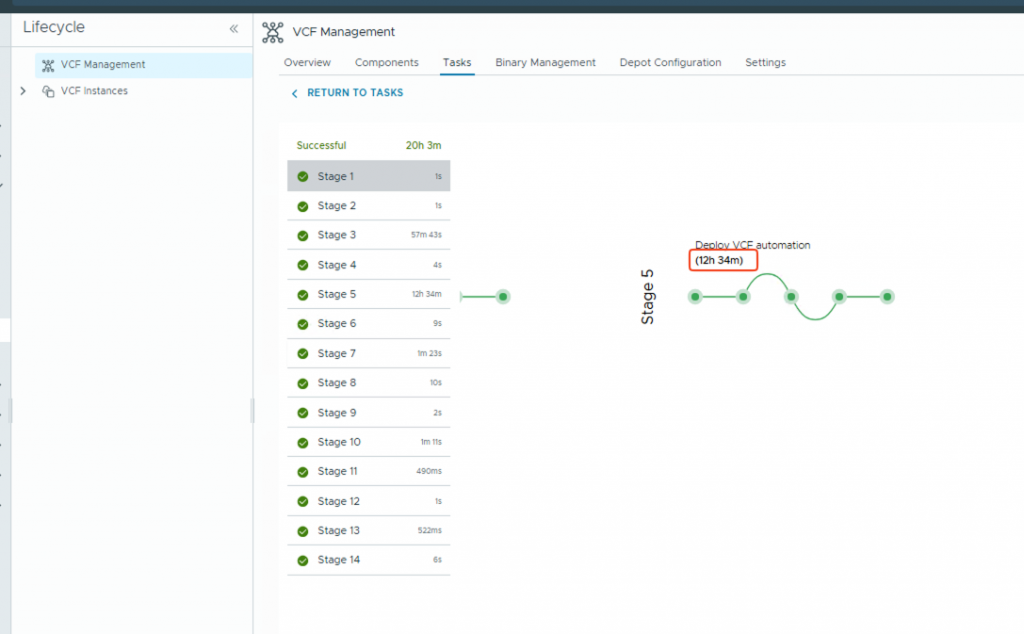
I was setting up my new VCF home lab, after VCF Automation appliance deployed successfully, I configured the appliance with 54GB of memory and 12CPU, but the installer failed during the “Create Environment” phase. The VCF installer did not explain why it was stuck, but It was clear to me that this was a resource issue. To find more information, I logged in to the SDDC Manager and checked the Tasks section for VCF Management.
In my case, I found an error at Stage 5 of the deployment. As usual, I was so busy fixing the problem that I forgot to take a screenshot! I took this one after I fixed it, but it shows you where to find the details. You can see that Stage 5 took 12 hours—this is a clear sign of a problem.
When I looked closer at the logs, I saw this error message:
Request createenvironment failed with error cause [{"messageId":"LCMVMSP10002","message":"Failed to deploy product on the application platform.","eventId":"4c20087d-d8ad-4c6e-a6ca-cd753737769b","retry":true,"exceptionMessage":"Product deployment failed.","exceptionStackTrace":"com.vmware.vrealize.lcm.vmsp.common.exception.DeploymentFailedException: No failed pods found.\n\n.....
The logs also said “Product deployment failed.” This happened because some Kubernetes “pods” (services) could not start. In a home lab environment, this usually happens because of resource constraint. As I mentioned before, after the VCF Automation appliance was deployed, I manually decreased the memory from 96GB to 54GB. I did this because I saw that in the VMware Hands-on Labs (HOL), VCF Automation only configured with 54GB. I wanted to save memory in my home lab!
To fix this error and confirm my assumption, I needed to check the Kubernetes logs. However, I had a problem: you cannot log in directly as “root” to a VCF Automation appliance. Why? because when I ran the VCF Installer, I chose the “auto-generate credentials” option. This meant the installer created the passwords, but it did not give me the root password. As you can see in the screenshot.
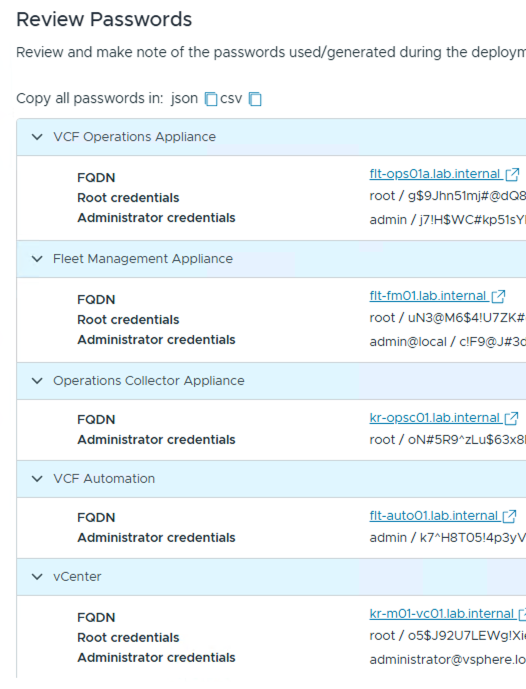
To get access and use Kubernetes commands (kubectl), I had to find a way in.
1- SSH into the appliance using the following username (it uses the same password as the ‘Admin‘ account):
vmware-system-user2- Type this command to become the root user:
sudo su -3- Run these commands to see which pods are running or failing:
kubectl get pods -n preludeIn my case, services like adapter-host-service, catalog-service, and vco-app-0 (Orchestrator) were stuck. To see why, I ran this command for the failed pod:
kubectl -n prelude describe pod vco-app-0 | tail -n 15I found the following warning in the logs:
Warning FailedScheduling 28m default-scheduler 0/1 nodes are available: 1 Insufficient memory. preemption: 0/1 nodes are available: 1 No preemption victims found for incoming pod.

Even though I thought 54GB was enough, Kubernetes could not start the pods. I tried increasing the RAM to 64GB, but it remained stuck. Only when I increased it to 80GB did the pods immediately start running and become healthy.
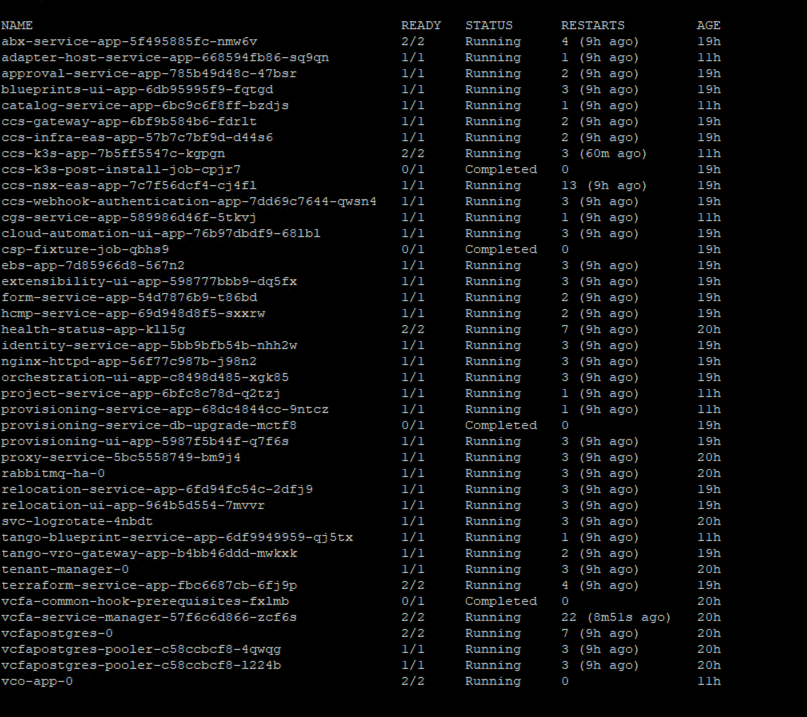
Why? Kubernetes does not schedule pods based on the memory you are actually using at the moment. It schedules them based on “Requests” (reservations). If the system doesn’t see enough reserved space, it won’t start the service.
After I fixed the memory and clicked “Retry” in the VCF Installer, the installation finished successfully.
My Tips:
If you are running VCF Automation in a home lab, 80GB is your “stable zone.” This will keep your environment running smoothly, even during future updates. Beside that, I decreased the compute setting from 24 to 12 cores and found it still performs remarkably well. This setup provides me enough power to test various automation tasks and workflows with least resource contention, allowing you to save hardware capacity while maintaining a stable deployment.